


Overview of unencrypted secure printing
Celiveo Pull Printing can secure the release of unencrypted jobs sent directly to a Celie-enabled printer or to a CSVP (Celiveo Shared Virtual Printer).
These jobs are controlled and tracked as “Celiveo non-encrypted jobs.”
Note that the jobs themselves are not encrypted; only their release is made secure by being only feasible by the addressee.
Modifying the device type
You need to modify the device type to interface SAP and Celiveo. Please refer to your SAP Output Management technical guides on how to modify a device type.
Replacing the job header sequence
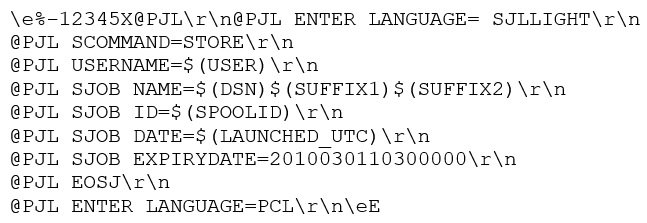
You must replace the existing job header in the device type with the sequences listed below.
Please note that all lines shown should be appended one after the other without any carriage returns between them.
(Carriage returns were inserted in the listing below only for the purpose of improved readability.)
Replacing the job trailer sequence
The following sequences must be used to replace the existing job trailer in the device type.

Activation of the device type
Once the device type is saved, activate it in the production environment and use it to produce documents.
To verify that the modification is active, print to a file on disk, open it with any text editor and verify its header/footer meets the requirement.
Post your comment on this topic.